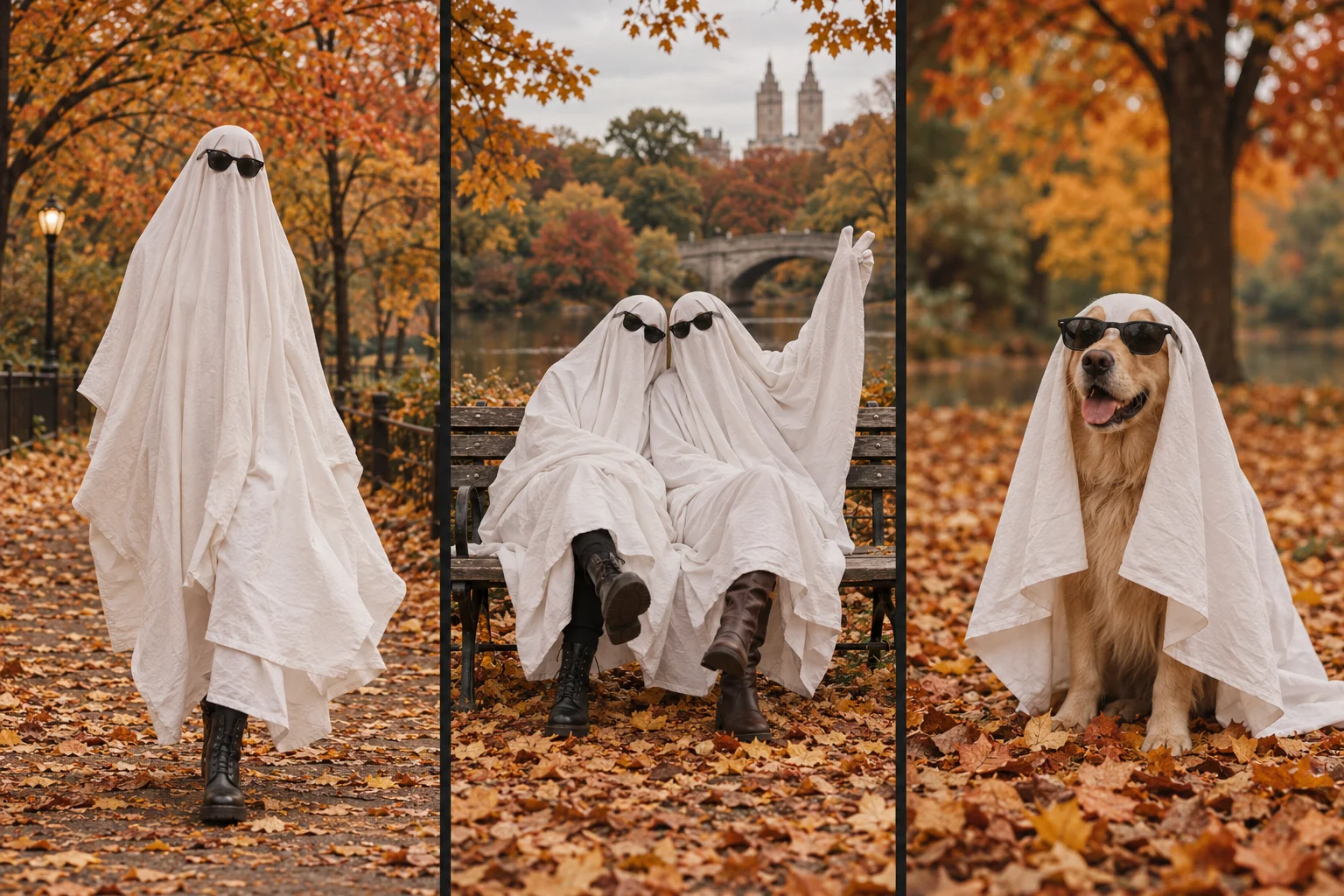
A ghost photoshoot can be a real portrait session with a white sheet or an AI transformation of an existing photo. Choose DIY when you want direct control of fabric, lighting and poses. Choose AI when you want to try the look from one photograph without dressing the subject. This guide covers both workflows and the points where they differ.
What you need
For DIY photography, gather a plain sheet, sunglasses, a phone or camera and a helper. Pick a permitted location with level ground and room to move. Do not prepare or cut fabric while anyone is wearing it. Keep breathing and visibility unobstructed; stop if the costume interferes with either. For a pet, use an uncovered photo and add the ghost treatment digitally instead.
For the AI workflow, use one clear full-body image of an adult, a dog or cat, or adult friends together. You need permission to use the image and consent from recognizable people. A screenshot with interface text, a collage or a tightly cropped face provides a weaker starting composition than a clean photograph with visible limbs and space around the subject.
The DIY photo workflow
- Plan the frame before adding the costume. Photograph the uncovered subject first to check the location, background and light.
- Keep the pose simple. A relaxed standing pose, a small head tilt or a seated portrait works without relying on facial expression.
- Check exposure on the sheet. White fabric should retain folds; take a test frame and lower exposure if it becomes a flat bright shape.
- Shoot variations while stationary. Change the camera angle or hand position rather than asking someone with limited visibility to walk.
- Review and edit. Select the strongest frames, crop consistently and add permitted audio if making a slideshow.
See the ideas guide for specific compositions. A costume should never be worth discomfort or an unsafe location.
Make an AI ghost photoshoot from one photo
In Ghost Photoshoot AI Generator, the photo guides the subject and scene composition. The service requests a white-sheet ghost treatment, dark sunglasses and gentle portrait movement.
- Sign in and select your photo. Inspect the preview before submitting. For friends, everyone must already appear in the same uploaded image.
- Choose the scene option that fits your subject. Solo, pet and friends inputs have different composition needs. Keep your expectations aligned with the actual photo.
- Choose quality and review the price. The target is 480p for 150 credits or 720p for 350 credits. The displayed charge applies to this generation; resolution alone does not predict accuracy.
- Confirm your permission to use the photo, then submit once. Follow the task status. Provider queues affect waiting time; submitting again creates another request rather than speeding up the first one.
- Open and review the result. The requested output is a 9-second, silent, vertical 9:16 video. Return to your videos with the same account if you leave the page.
The product uses a configured Seedance service through SeeAPI or PolarisCore. The output is an AI interpretation, so precise likeness, consistent anatomy and exact background preservation are not guaranteed.
Understand credits before trying again
The current one-time packs are Mini at $9.90 for 150 credits, Starter at $19.90 for 350 credits and Creator at $29.90 for 700 credits. Purchased credits have a 365-day validity period. Checkout displays the applicable currency and charges; pricing and the generator show current offers and generation costs.
Budget by dividing your balance by the displayed generation charge and rounding down. Do not assume that one pack guarantees a particular number of publishable results: each completed attempt may need visual review. A higher-quality request can cost more without resolving an obscured limb in the input.
A task marked failed returns its charge as credits. That is different from a cash refund. A completed result you want to revise is a new paid attempt. See the terms before purchasing.
Check these five things before sharing
| Check | What to look for |
|---|---|
| Subject count | Extra, missing or merged people or animals |
| Anatomy | Feet, paws and hands changing shape between frames |
| Costume | Sheet edges flickering or sunglasses sliding unnaturally |
| Crop | The head and feet staying inside the vertical frame |
| Privacy | Names, addresses or identifying background details you did not intend to publish |
Play the whole clip and pause around motion changes. If you retry, change one input factor at a time so you can judge what changed. These checks are manual; they are not an automated quality score.
Add finishing touches elsewhere
The generated file has no audio. Add licensed music, captions and any final crop in an editor or publishing app you choose. Do not describe an AI transformation as real footage of a costume session. Follow the destination platform's disclosure rules and the photo permissions you obtained.
For pet comfort and group composition, continue with ghost photoshoots with pets and friends. For account, credit or task problems, open a support ticket.
Compare your options
Still choosing a workflow? Compare AI ghost videos, DIY photography and photo filters by output, control and input requirements.